

Workflow Collect
Learn all there is to know about generating Workflow Session Links
What is Workflow Collect ?
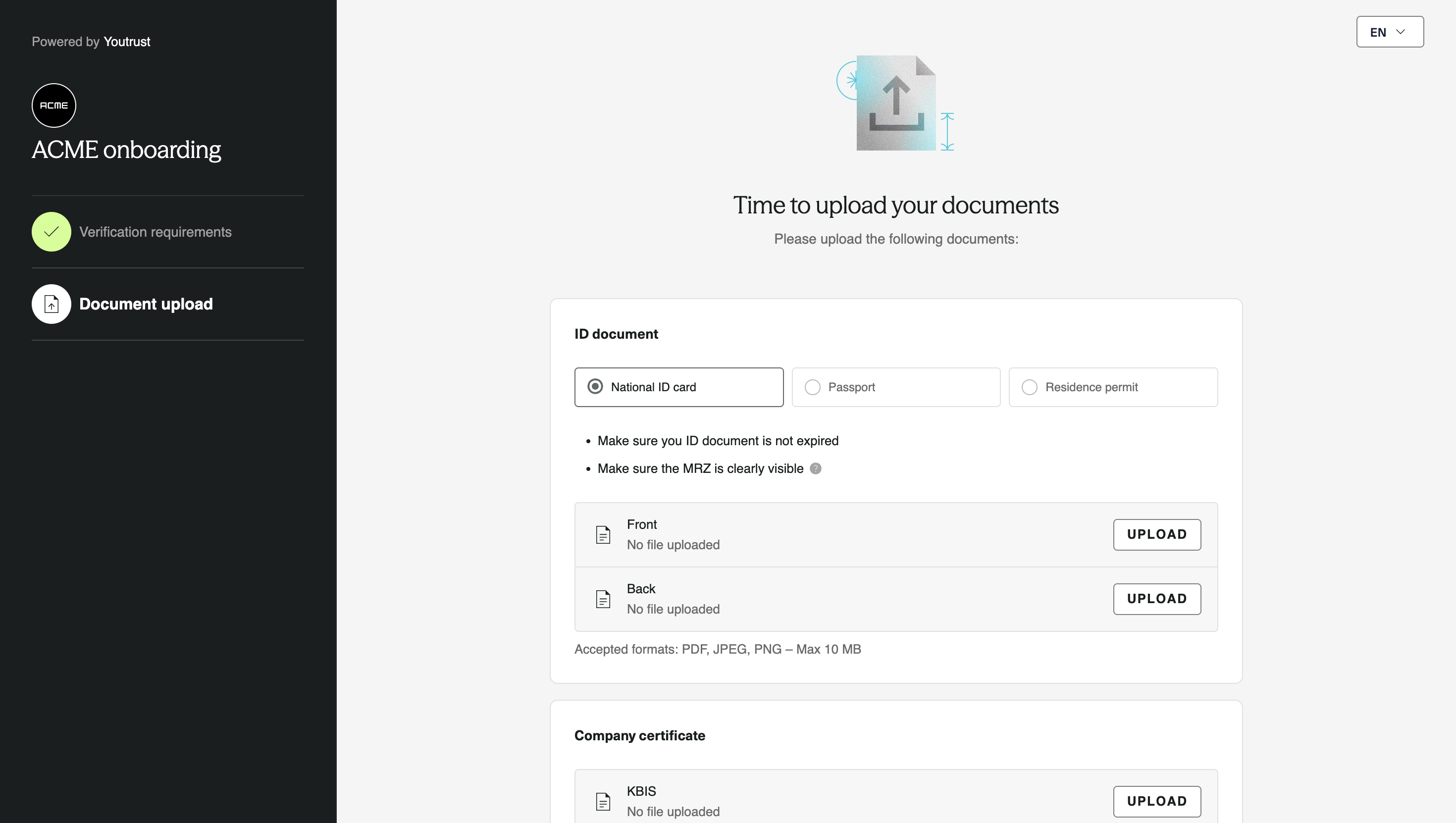
With Workflow Collect you can generate a url that you can easily share to an individual or a company that your are onboarding. These links are refered to as : Workflow Session Links in the API. On this link your end user will be able to upload documents, that will be automatically verified.
- Workflow Session Links are generated for an Applicant.
Prerequisites
To generate a Workflow Session Link you will need :
- A Workflow Template (see here).
Once you have a Workflow Template, you need to initialize a Workflow Session for that Template (see here)
Workflow Templates define the Verifications you will be able to perform in your Workflow Session.
For instance, if Bank Account Document Check is not part of your Workflow Template you won't be able to generate a Workflow Session Link where your end user will be required to upload a Bank Account Details document.
What are Applicants ?
In an onboarding context, you usually collect data on a potential future customer or partner and then request specific documents you want to verify.
Applicants define the end user that will upload his documents. Applicant data are used to cross-reference check extracted data from each documents. The more data you have on your applicant the more data points will be cross- reference checked across the uploaded documents.
Once you have initialized your Workflow Session you can create and link an Applicant to that Session. Applicants can be of two types : natural_personor legal_person. Keep in mind that you can link multiple Applicants to the same Workflow Session.
The Applicant type defines the Verifications you can perform on that Applicant. Currently the following Verifications are supported :
| Document and Identity Verification | natural_person | legal_person |
|---|---|---|
| Image Identity Verification | ✅ | ❌ |
| Proof of Address Verification | ✅ | ❌ |
| Bank Account Document Check | ✅ | ✅ |
| Bank Account Verification - SEPAMail | ✅ | ❌ |
| Company Registry Verification | ❌ | ✅ |
Document Analysis (company_certificate, business_registration_certificate,rne_certificate, temporary_vehicle_registration_document, vehicle_registration_document) | ❌ | ✅ |
Document Analysis (temporary_vehicle_registration_document, social_security, vehicle_registration_document, driver_licence) | ✅ | ❌ |
In case you are onboarding a company, you can create a Workflow Session with two applicant types :
natural_personfor the legal representatives for instance and alegal_personfor company related documents.
Attaching a Verification to an Applicant
Once you have created your Applicant, you can link the Verifications you want to perform for this applicant. To link a Verification to an Applicant you can Initiate a Verification with the applicant_id.
- When the Verification is initiated successfully with an Applicant it will move to the :
awaiting_datastatus. - At this stage the Workflow Session is still in :
awaitingstatus. See more on Workflow Session Statuses here.
Generating you Workflow Session Links
Once you've initiated all the Verifications for your Applicants, you can generate the Workflow Session Links for that Workflow Session by calling the Workflow Session Links endpoint.
Keep in mind that if no Verifications are attached to an Applicant when generating the Workflow Session Link you will get an empty array for that Applicant :[ ].
All Workflow Session Links have a duration of 48 hours. When the link is expired you will need to regenerate it for your end user to be able to upload his documents.
- Each applicant gets their own unique URL — share
workflow_session_link_urlvia email, SMS, or in-app.- Since links are time-limited (see
workflow_session_link_expires_at). Call this endpoint again to regenerate fresh links.
Following the Workflow Session's Status
To follow the Workflow Session's Status you can :
- Monitor the Workflow Sessions Webhooks, in which you will find the applicant ids and their associated statuses.
- Optionally check your in-app Dashboard as described here
Once the Workflow Session moves to done status, this means all the Actions of your Applicant are in done status and that all Applicants have moved to processed status.
Keep in mind, that if needed you can attach new Verifications to an Applicant even if the session has moved to done status. When attaching a new verification to an Applicant, he will move to notified status and the Workflow Session will move back to awaiting status.
Error management and Limitations
Suspicious document errors
In some cases, Yousign will return a status code that is considered as a strong signal of document tampering or attempted fraud. See Suspicious Document Status Codes category for Image Identity Verification for instance.
In these specific cases, while the status of the verification will be
failedwith the associated status code, your Applicant won't be able to retry an upload of a new document. If you're expecting other types of verification he will still be able to perform them as expected.
This mechanic is here to prevent a fraudulent Applicant from retrying an upload and consuming unnecessary retries or finding ways to bypass verification controls.
Managing retries
Once you've shared the Workflow Session link to your applicant, they will get 10 attempts to successfully verify their documents. After their 11th attempt the end user will be blocked and you will need to either :
- Create a new Workflow Session and a new Applicant.
- Or Resolve manually the verifications with the Resolve An Action endpoint.. When resolving an Action, the Action will move to done status and the Applicant won't be able to upload a document for that Action.
Managing expiration
Currently a Workflow Session Link expires after 48h. Once a link has expired, your end user will be unable to upload his documents. In order to create new Workflow Session Link simply call the /link endpoint, to get a fresh link.