

Use Templates to create Signature Requests
Learn how to use Templates to create Signature Requests from the API or the application.
Create a Signature Request from a Template
Create a Signature Request from a Template by copying the Template ID and passing it to the API.
Go to the Template page of your Yousign app, select the Template of your choice, then copy its template_id.
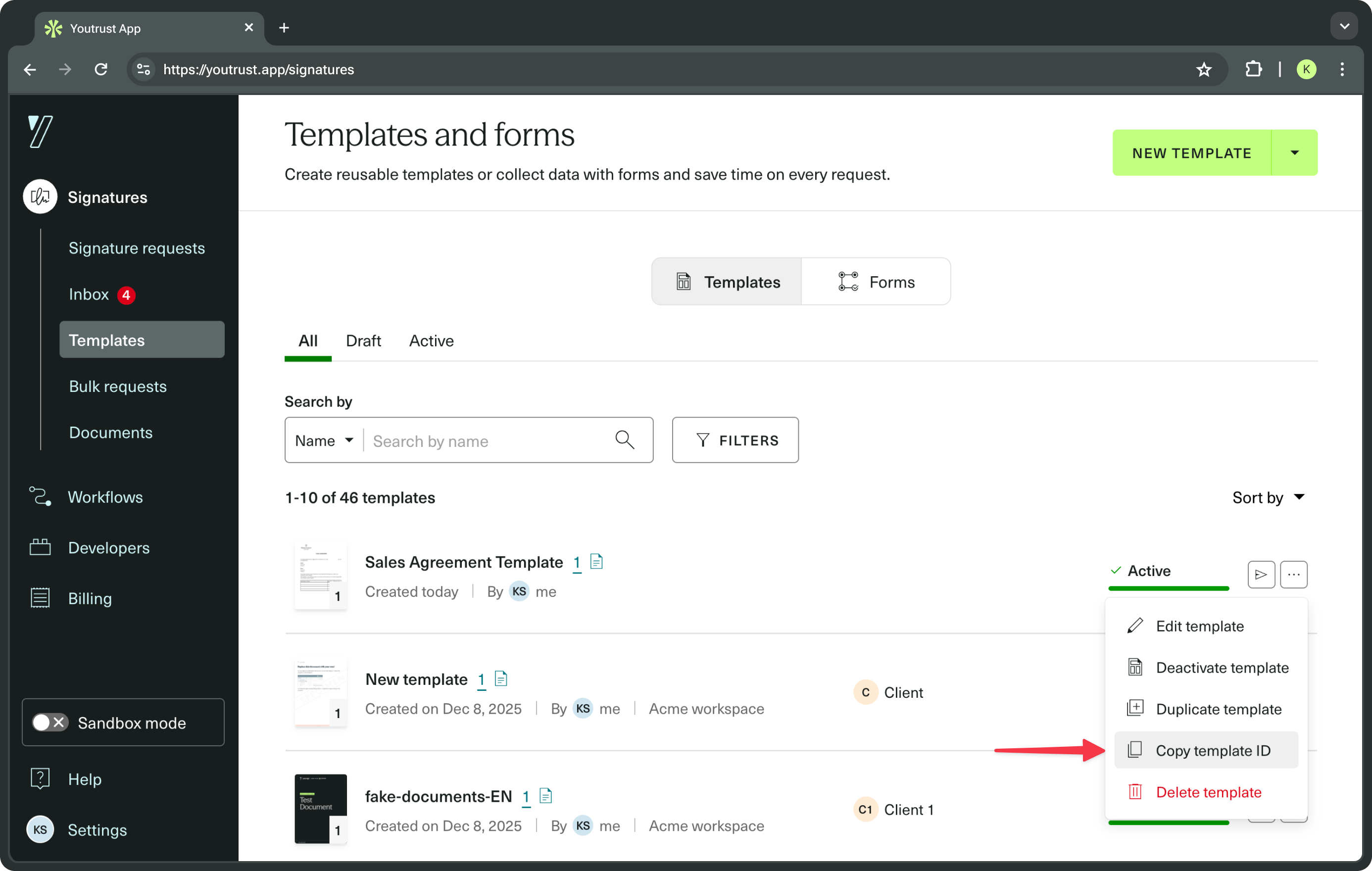
Template statusMake sure that the Template status is set to
activeand notdraft.
Then, initiate a new Signature Request with the POST /signature_requests endpoint (see API Reference), and specify a value for the template_id property.
{
  "name": "A new SR from a Template",
  "delivery_mode": "email",
  "template_id": "9a93d3b5-fb3b-4abf-9e70-26315b33506c"
}
Workspaces scopeIn the app, we can choose to restrict the use of a Template to a specific Workspace.
When creating a new Signature Request from a Template, you should make sure to either:
- Not specify a
workspace_idfor the new Signature Request. It will automatically be created in the Template’s Workspace.- Specify a
workspace_idfor the new Signature Request that corresponds to the Template’s Workspace. If both Workspaces are different, it will generate an error.
The Signature Request that has been initiated will inherit all the pre-configured elements from the Template.
From that point, you can keep editing your Signature Request as usual (add Signers, Approvers, modify settings, etc.).
Once you are done, you must activate the Signature Request (see API reference).
Depending on what the Template contains, activate the Signature Request in one of these ways:
- If only the document has been pre-configured on the Template, add at least one Signer to the Signature Request before activating it.
- If a document and at least one Signer have been pre-configured on the Template, activate the Signature Request right after initiation.
Environment scopeTo test your Template in the Sandbox environment, you need to set the Templates page of your app to Sandbox mode.
- Templates created in Sandbox mode can only be used to create Signature Requests in the Sandbox environment.
- Templates created in Production mode can only be used to create Signature Requests in the Production environment.
Learn more about environments in this guide.
Create a Signature Request from a Template with Placeholder Signers
Add a Placeholder Signer
When adding a Signer to a Template in your Yousign app, you must choose between two options:
- Recurring Signer: use this option to assign a person who will be consistent across all Signature Requests created from the Template. You must add the person’s details directly in the Template.
- Placeholder Signer: this option is ideal if a different person will sign each time a request is created.
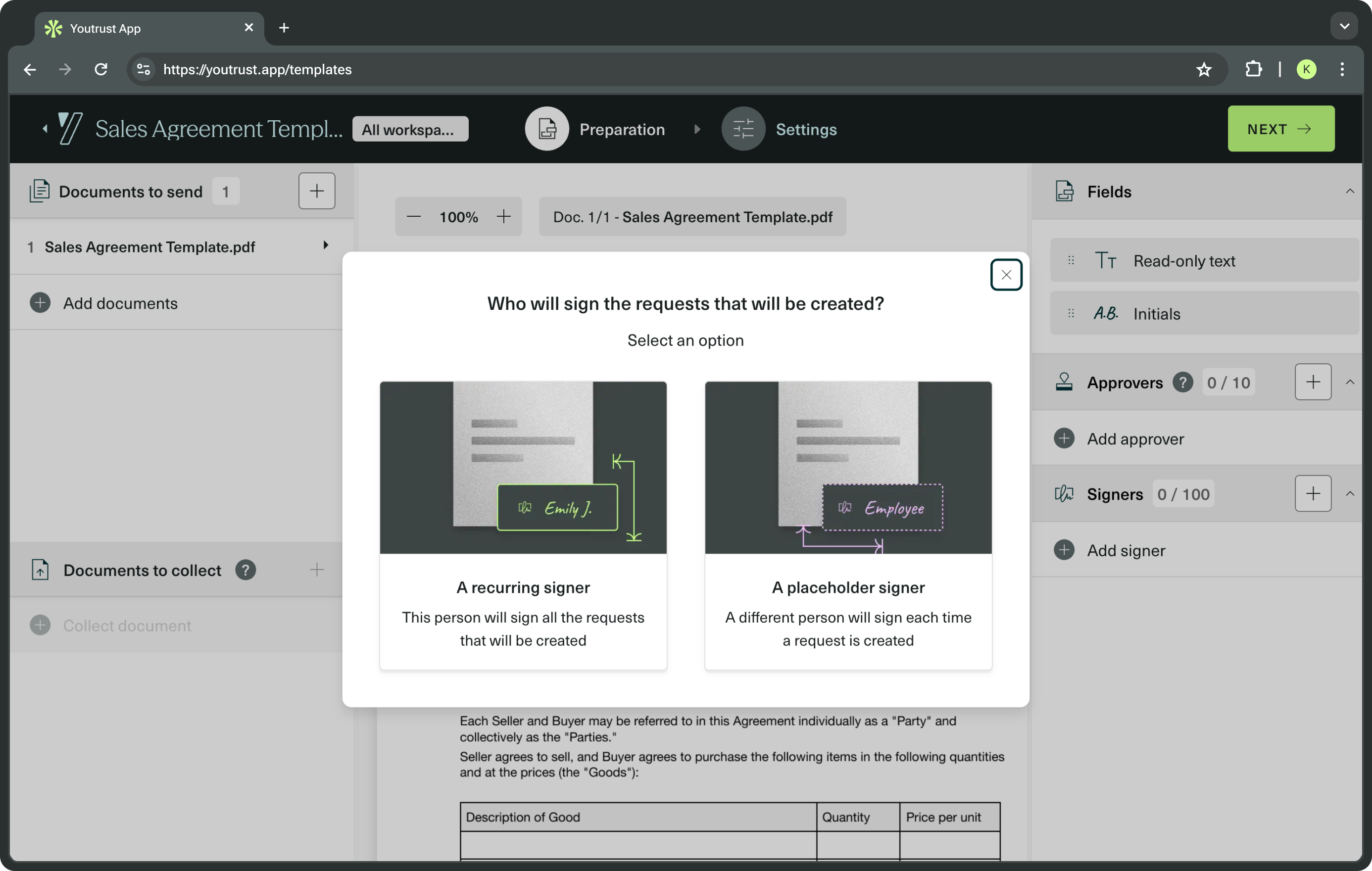
The Placeholder Signer is given a label (e.g. seller, buyer).
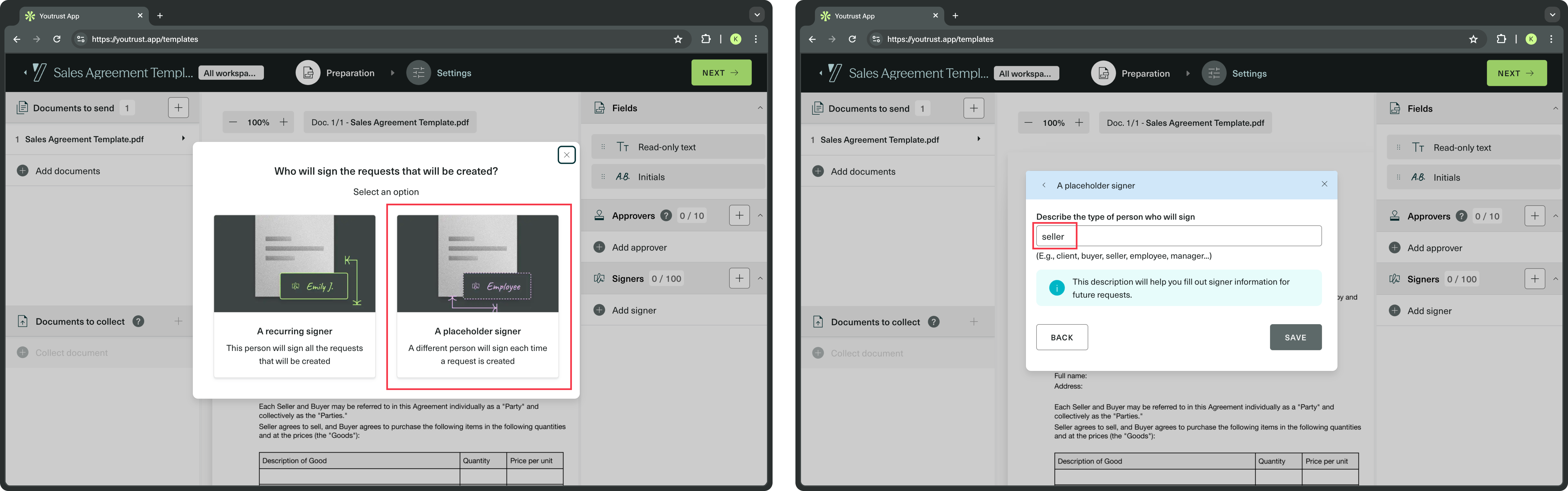
Create the Signature Request from API
- Go to the Template page of your Yousign app, select the Template of your choice, then go to
Edit Template.
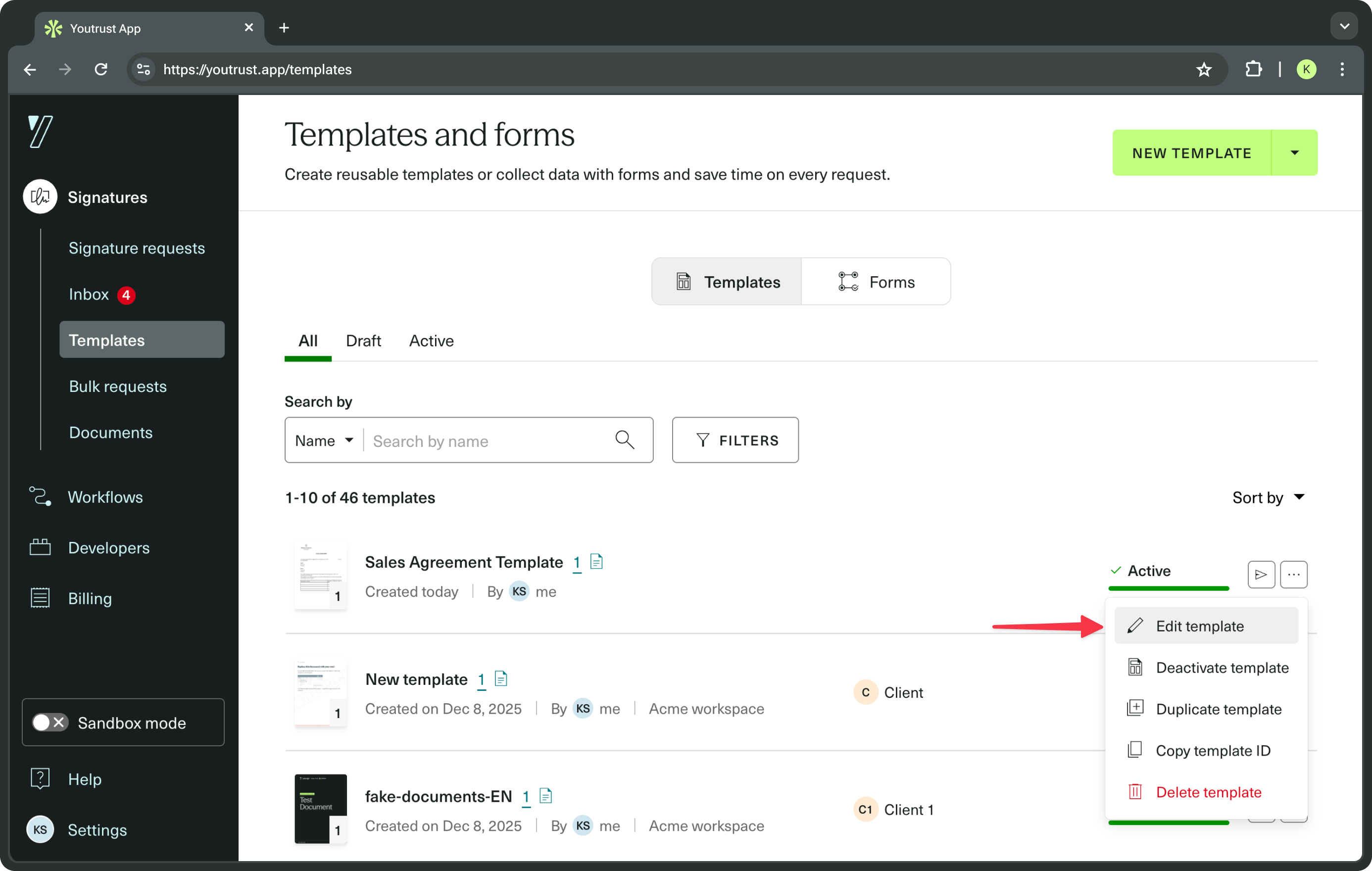
- Retrieve the
labelof each Placeholder Signer on the right panel. In this example, thelabelis seller.
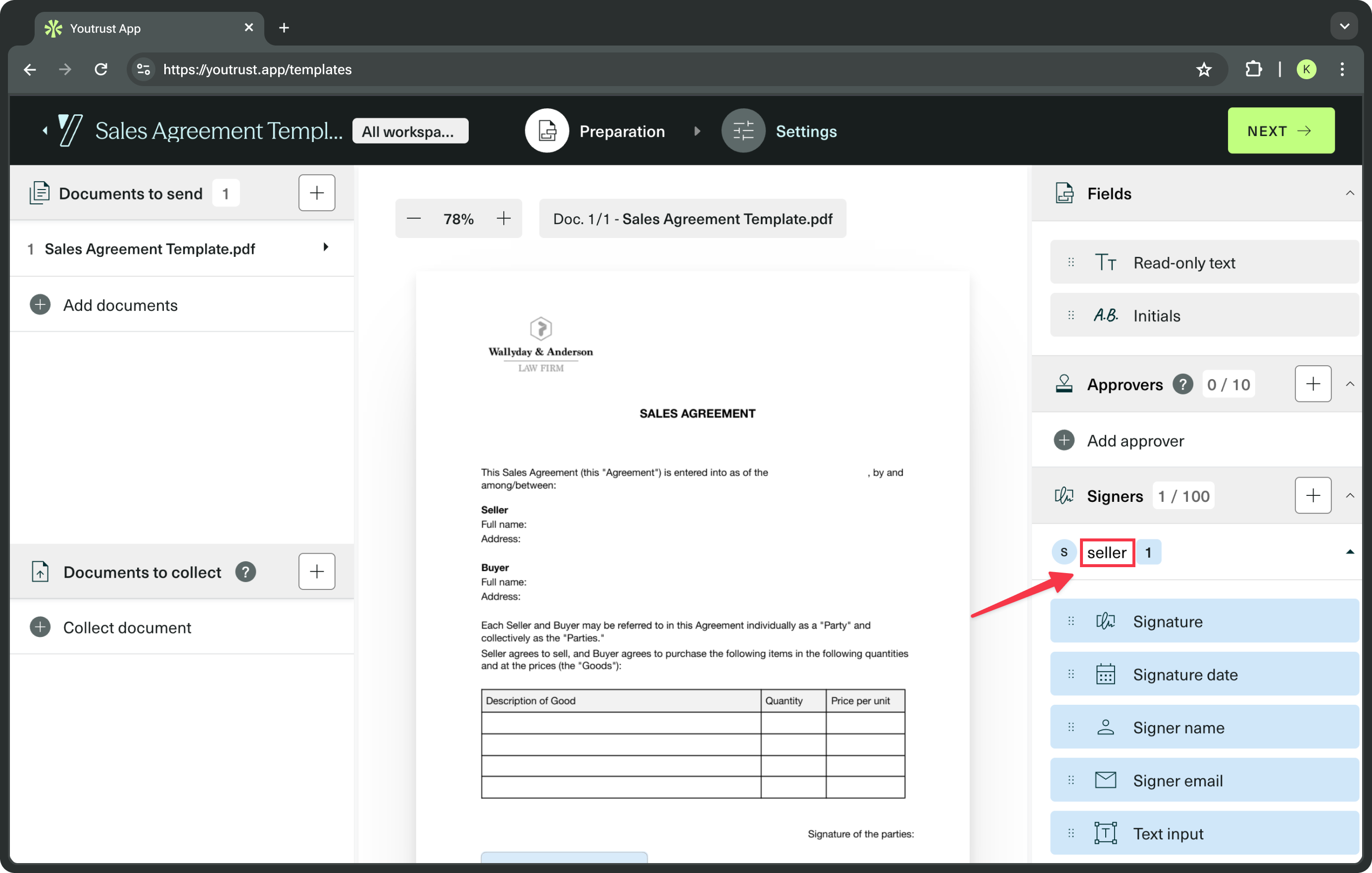
- Initiate a new Signature Request from the API and replace each Placeholder Signer with a real Signer.
Use the POST /signature_requests endpoint (see API Reference) and specify values for the template_placeholders object. Each Placeholder Signer is identified by its label property.
The label is case sensitive, so use the exact copy. For example, "Seller" is different from "seller".
You can create a Signer from scratch or use an existing Contact or User (see Signer page).
   {
     "name": "A new SR from a Template",
     "delivery_mode": "email",
     "template_id": "9a93d3b5-fb3b-4abf-9e70-26315b33506c",
     "template_placeholders": {
       "signers": [
         {
           "label": "seller",
           "info": {
             "first_name": "John",
             "last_name": "Doe",
             "email": "[email protected]",
             "locale": "en"
           }
         }
       ]
     }
   }
Create a Signature Request from a Template with Empty Read-Only Text Fields
Add an Empty Read-Only Text Field on a Template
Read-Only Text FieldsRead-Only Text Fields allow you to add text on a document that won't be editable by any of the recipients. It's a way to quickly edit the document before sending it for signature.
On a Template, you can choose to let such Field empty, and just assign it a label that helps identify the Field. Those Fields will have to be populated when a new Signature Request is created from the Template. This feature is particularly useful when certain document details, such as prices or terms, need to be customised for each request.
For example, on the Template of a sales contract, you can add an Empty Read-Only Text Field and give it a price label. Each time a Signature Request is created from that Template, you can put a different price in that field manually in the app or via API.
- Add a Read-Only Text Field
- Select “Fill this field later"
- Give a
labelto the Field
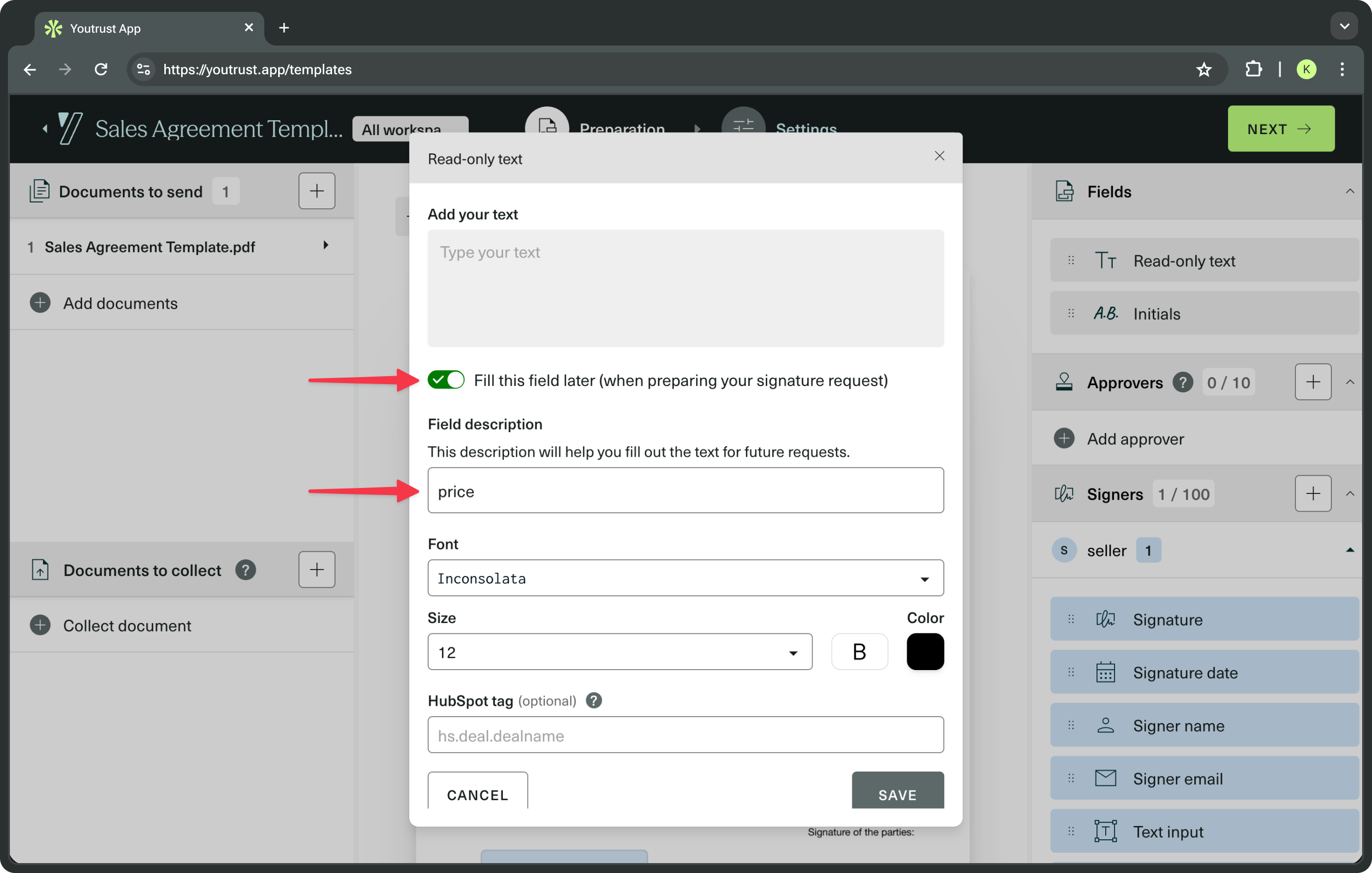
- Your Empty Read-Only Text Field has been added to the Template
Create a Signature Request and populate the Template's empty Read-Only Text Fields
When you initiate a new Signature Request from the API, you must add a text value to each Empty Read-Only Text Field contained in the Template.
Use the POST /signature_requests endpoint (see API reference) and specify values for the template_placeholders object. Each Empty Read-Only Text Field is identified by its label property.
Formatting rules
- The
labelis case sensitive, so make sure to use the exact copy (i.e. "price" is different from "Price").- The text length must not exceed the size of the Empty Read-Only Text Fields on the Template. If you want to allow long text, make sure to extend the Field.
{
  "name": "A new SR from a Template",
  "delivery_mode": "email",
  "template_id": "9a93d3b5-fb3b-4abf-9e70-26315b33506c",
  "template_placeholders": {
    "read_only_text_fields": [
      {
        "label": "price",
        "text": "€5,000"
      },
      {
        "label": "paiement type",
        "text": "bank transfer"
      }
    ]
  }
}